
Introduction
Have you ever noticed that scrolling feels smooth on one computer but slightly rough on another? Or perhaps you purchased a gaming monitor advertised as 144Hz or 165Hz, yet the screen does not seem much different from an ordinary display. These situations can make you wonder whether your monitor is performing as expected.
A refresh rate test helps answer that question. It allows you to check how frequently your display updates its image and whether your computer is using the refresh rate you expect. This is useful for gamers, office workers, students, designers, and anyone who wants to understand their screen’s performance.
The term “refresh rate test” is commonly used for online tools that measure display activity through a web browser. Other methods let you check the refresh rate selected in your operating system. Using both approaches can help you identify whether your display settings, browser, or hardware might be limiting performance.
In this guide, you will learn what a refresh rate test measures, how refresh rates work, how to check your monitor’s Hz, what different results mean, and how to troubleshoot common problems.
What Is a Refresh Rate Test?
A refresh rate test is a way to check how frequently a display updates its image, usually measured in hertz (Hz). One hertz represents one cycle per second. A 60Hz display, for example, can refresh its image 60 times per second, while a 144Hz display can refresh it 144 times per second.
Many online tests measure the timing of animations rendered in a browser. They estimate how frequently the browser can present new frames under the current conditions. Other testing methods examine motion, frame consistency, or the behavior of a display when showing moving objects.
A refresh rate test can help you answer several practical questions:
- Is my monitor operating at its expected refresh rate?
- Is my 144Hz display limited to 60Hz?
- Does my computer produce smooth animation?
- Could a display setting or cable be restricting performance?
- Is the browser test showing the same rate that my system reports?
It is important to understand that an online test does not always measure every aspect of a monitor. Browser performance, operating system settings, graphics hardware, and background activity can affect the result. For the most reliable assessment, compare a browser-based measurement with the refresh rate reported by your computer.
What Does Refresh Rate Mean?
Refresh rate describes how frequently a display updates its image. Manufacturers typically specify the supported refresh rates for monitors, laptops, televisions, and other screens.
The unit used is hertz, abbreviated as Hz. The higher the refresh rate, the more frequently the display can update the image when the computer supplies suitable frames.
Consider a few common examples.
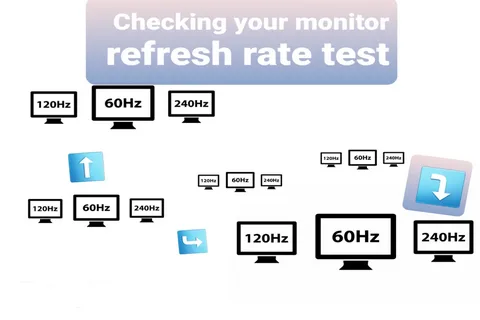
60Hz: The display refreshes 60 times per second. This remains suitable for general computing, browsing, watching many types of video, and everyday office work.
75Hz: The display can refresh 75 times per second. It offers a modest increase over 60Hz and may provide slightly smoother movement.
120Hz: The display refreshes 120 times per second. This can make scrolling, compatible video content, and supported games appear smoother.
144Hz: A popular choice for gaming monitors, offering frequent screen updates and a more responsive visual experience when paired with appropriate hardware.
165Hz: A higher-refresh option that provides additional update opportunities compared with 144Hz.
240Hz: A display designed for very frequent updates, often appealing to competitive gamers who value smooth motion and low display latency.
Higher refresh rates are not automatically better for every person. The difference you notice depends on the task, the display, the content, and your own sensitivity to motion. Someone who mainly writes documents may not need a 240Hz monitor, while a competitive gamer may appreciate the extra smoothness.
Refresh Rate vs. Frame Rate: What Is the Difference?
Refresh rate and frame rate are related, but they describe different things.
Refresh rate refers to how frequently the display can update its image. Frame rate, usually measured in frames per second (FPS), refers to how many frames a computer, game, or other application produces each second.
Imagine that you own a 144Hz monitor but your game produces only 60 FPS. The monitor is capable of refreshing 144 times per second, but the game is not supplying 144 new frames each second. The resulting experience will not contain 144 distinct game frames per second.
Now imagine that your computer produces 200 FPS while connected to a 60Hz monitor. The display cannot show 200 complete refreshes each second because its selected refresh rate is only 60Hz. Depending on synchronization settings, you may see tearing or other visual differences.
This explains why checking both measurements can be helpful.
A refresh rate test examines the display or browser’s current update behavior, while an FPS counter shows how frequently an application produces frames. Neither measurement alone tells the complete story of system performance.
Why Should You Perform a Refresh Rate Test?
There are several reasons to test your display, even if you have not noticed a specific problem.
Checking a New Monitor
A new monitor may support 144Hz, 165Hz, or a higher refresh rate, but your computer might initially use a lower setting. Checking the refresh rate after installation helps confirm that the system is configured as expected.
Troubleshooting Gaming Performance
Games often involve fast movement, camera rotation, and rapidly changing scenes. If the display operates at a lower rate than expected, motion may appear less smooth than you anticipated.
Testing the refresh rate can help separate a display configuration problem from a game performance problem.
Comparing Displays
A refresh rate test can help you understand the difference between two screens. For example, you may want to check whether an external gaming monitor operates at 144Hz while your laptop’s built-in display operates at 60Hz.
When comparing displays, test each one separately and keep the same browser and system conditions wherever possible.
Checking After a Cable Change
A different cable, adapter, docking station, or display port can affect the available resolution and refresh rate. After changing your setup, check that the expected display mode remains available and active.
Investigating Choppy Scrolling
If web pages appear to move unevenly when you scroll, a refresh rate test may help identify whether the browser is presenting frames consistently. However, choppy scrolling can also result from browser extensions, heavy web pages, graphics driver problems, or high CPU usage.
Confirming Display Settings
Operating systems sometimes select a default refresh rate rather than the highest rate supported by the monitor. A quick check can reveal a configuration that needs attention.
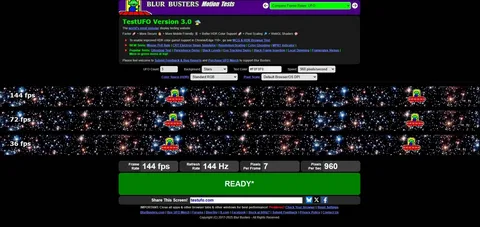
How to Perform a Refresh Rate Test Online
Online refresh rate tests are convenient because they usually require no additional software. Most work by measuring the timing of browser animations.
Follow these steps for a useful result.
Step 1: Open a browser-based refresh rate test.
Choose a reputable testing page that explains what it measures. Some tools display a live Hz reading, while others provide motion patterns or frame-timing information.
Step 2: Keep the test tab active.
Leave the testing page in the foreground. Browsers often reduce the activity of background tabs, which can affect measurements.
Step 3: Close unnecessary applications.
You do not need to shut down everything, but closing demanding applications, downloads, or heavy browser tabs may reduce interference.
Step 4: Wait for the result to stabilize.
Allow the test to run for several seconds. A short measurement can fluctuate because of temporary interruptions or initial browser activity.
Step 5: Compare the result with your monitor’s specification.
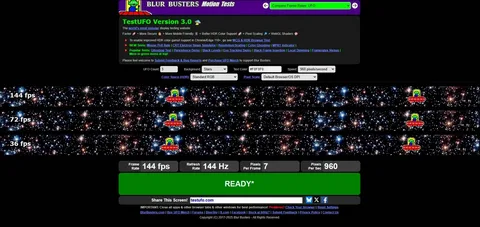
If your monitor is rated at 144Hz and the browser consistently measures close to that rate, the result is broadly consistent with the expected setting. Small differences can be normal.
Step 6: Check your operating system settings.
If the browser result is substantially lower than expected, inspect the display settings and supported refresh rates. A browser test alone cannot establish the cause of the difference.
For example, a browser may show a lower rate because of software limitations, background activity, power-saving features, or the way the browser renders animations. The operating system’s display settings provide another important piece of evidence.
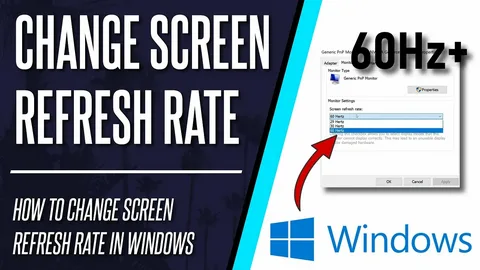
How to Check Your Refresh Rate in Windows
Windows includes display settings that show the refresh rates supported by your current display configuration.
To check your refresh rate:
- Open the Start menu and select Settings.
- Choose System.
- Open Display.
- Select Advanced display.
- Find the refresh rate information for the display you want to inspect.
- If a refresh-rate menu is available, review the supported options and select the appropriate rate.
The exact wording may vary slightly between Windows versions.
If your monitor supports 144Hz but Windows is set to 60Hz, selecting the higher supported option may improve motion smoothness. Before changing the setting, confirm that the monitor, graphics hardware, connection, and resolution support the desired combination.
If the higher refresh rate is missing from the menu, do not assume that the monitor is defective. The limitation may come from the connection, adapter, graphics driver, or selected resolution.
How to Check Refresh Rate on a Mac
Mac computers provide display controls through System Settings. Available options depend on the Mac model and the connected display.
To check:
- Open System Settings.
- Select Displays.
- Choose the display you want to inspect, if more than one is connected.
- Look for the refresh-rate setting or related display options.
- Review the available choices and select a supported rate when appropriate.
Some displays offer a fixed refresh rate, while others support adaptive refresh features. Not every Mac or external monitor provides the same options.
If you are using an external display, check the cable, adapter, and display specifications as well. A connection that supports the required resolution but not the desired refresh rate may limit your available choices.
How to Understand Your Refresh Rate Test Results
A test result becomes useful when you know what it means and what it cannot tell you.
A Result Near 60Hz
A reading close to 60Hz is normal for a 60Hz display. If you expected 120Hz or 144Hz, check the monitor’s specifications and current operating system settings.
A Result Near 120Hz
A reading near 120Hz generally indicates that the browser is presenting frames at approximately that frequency under the current conditions. Compare it with the refresh rate selected in your system settings.
A Result Near 144Hz
A reading close to 144Hz is consistent with the expected rate of a 144Hz display. Small variations may occur because real display timings and browser measurements are not always exact whole numbers.
A Result Lower Than Expected
A lower reading may indicate that the display is configured at a lower refresh rate, but other explanations are possible. Browser limitations, power-saving modes, a busy computer, or an external display connection can affect the result.
A Result That Changes Repeatedly
Fluctuating measurements may reflect inconsistent frame delivery, background activity, variable refresh behavior, or limitations of the testing method. Repeat the test under stable conditions before drawing conclusions.
A Result of Zero or No Reading
If a test shows zero or fails to display a result, the tool may not be working correctly in your browser. Try reloading the page, using another supported browser, or checking the operating system’s display information.
Do not conclude that the monitor has stopped refreshing simply because a web tool fails to measure it.
Common Reasons a 144Hz Monitor Shows Only 60Hz
One of the most common reasons people search for a refresh rate test is that a high-refresh monitor appears to be operating at 60Hz.
Several causes are worth checking.
The Refresh Rate Has Not Been Changed
A computer may use 60Hz by default even when the monitor supports a higher rate. Open the advanced display settings and check the selected refresh rate.
The Cable or Adapter Is Limiting Performance
Not every cable, adapter, or dock supports every combination of resolution, color depth, and refresh rate. A connection that works at 4K and 60Hz may not support a higher refresh rate at the same resolution.
Check the specifications of the monitor, graphics hardware, cable, and adapter. Use a compatible connection that supports your desired display mode.
The Wrong Display Port Is Being Used
Some computers have several video outputs, and their capabilities can differ. On desktop computers, a monitor connected to a motherboard output may behave differently from one connected directly to a dedicated graphics card.
Check the computer and graphics card documentation to determine which port is appropriate.
The Selected Resolution Is Too Demanding for the Connection
A connection may support a higher refresh rate at one resolution but a lower rate at another. For example, a display might offer a high refresh rate at a reduced resolution while being limited at its native resolution.
Review the supported combinations rather than assuming that every refresh rate is available at every resolution.
Graphics Drivers Need Attention
Outdated or malfunctioning graphics drivers can cause display problems or limit available modes. If the expected refresh rate is missing, consider checking for an appropriate driver update from the computer or graphics hardware manufacturer.
Use trusted sources and avoid downloading driver installers from unfamiliar websites.
Power-Saving Features Affect Performance
Some laptops and browsers reduce performance to conserve battery power. This can influence animation smoothness or the rate reported by a browser test.
If you suspect a power-saving limitation, compare the result while connected to power and review your system’s performance settings.
The Browser Is Limiting Animation
An online test measures browser-rendered frames rather than directly inspecting every electrical or hardware characteristic of the display. Browser settings, background tabs, graphics acceleration, and platform-specific limitations can influence the result.
If the browser test reports 60Hz while the operating system confirms a higher setting, investigate the browser and testing method before changing hardware.
Does a Higher Refresh Rate Improve Gaming?
A higher refresh rate can make gaming feel smoother and more responsive, particularly in games with fast movement.
At 60Hz, each refresh interval is approximately 16.67 milliseconds. At 120Hz, the interval is approximately 8.33 milliseconds. At 144Hz, it is approximately 6.94 milliseconds.
These intervals describe how often the display can update, not the total input-to-screen delay of the entire computer. Actual responsiveness depends on several other factors, including game processing, input devices, frame generation, synchronization, and display response time.
For competitive games, a higher refresh rate may make moving targets easier to follow and provide more frequent visual updates. For slower games, strategy titles, and many single-player experiences, the benefit may be less important than image quality, resolution, or other features.
A higher-refresh monitor also cannot force a game to produce more frames than the computer can render. If the graphics card struggles to maintain a high frame rate, you may still experience uneven motion.
The best setup balances refresh rate, graphics performance, resolution, and the type of games you play.
Refresh Rate and Screen Tearing
Screen tearing occurs when parts of different frames appear in a single displayed image. It can happen when the timing of frame delivery and display refreshes are not properly synchronized.
The effect is particularly noticeable during horizontal camera movement or other fast motion. A scene may appear to contain a visible horizontal split.
Several approaches can help manage tearing, depending on the system. Vertical synchronization, or V-Sync, coordinates frame presentation with display refreshes, although it can affect latency and performance. Variable refresh rate technologies, including compatible implementations of AMD FreeSync and NVIDIA G-SYNC, can adjust display timing within a supported range to improve smoothness.
The appropriate option depends on the monitor, graphics hardware, game, and personal preference.
A refresh rate test can confirm aspects of display timing, but it does not independently prove whether screen tearing is present in every game. For that, observe motion under the conditions where the problem occurs.
Refresh Rate vs. Response Time
Refresh rate and response time are often confused because both affect how motion looks on a screen.
Refresh rate measures how frequently the display updates its image. Response time describes how quickly a pixel changes from one color or brightness state to another, according to the particular measurement method.
A high-refresh display can still show smearing if its pixels transition slowly. Similarly, a monitor with fast pixel response does not automatically have a high refresh rate.
This distinction matters when choosing a gaming monitor. A 240Hz rating tells you how frequently the display can refresh under supported conditions, but it does not describe every aspect of motion clarity.
For a more complete evaluation, consider refresh rate, response time, input lag, motion handling, and the display technology itself.
Can a Refresh Rate Test Detect Every Display Problem?
No. A refresh rate test is useful for checking one part of display performance, but it is not a complete monitor diagnostic.
A browser-based test may estimate the rate at which frames are presented, but it cannot reliably diagnose every cause of flickering, ghosting, color problems, or physical panel defects.
Different problems require different methods.
A dead-pixel test examines whether individual pixels display expected colors. A response-time test evaluates pixel transitions. A motion test can help reveal blur or ghosting. A color test examines color reproduction, while a brightness check evaluates luminance.
If a monitor flickers, loses its signal, or displays persistent artifacts, inspect the connection and settings first. If the problem continues, consult the monitor manufacturer’s troubleshooting guidance or a qualified technician.
A single measurement should not be used to make claims about the entire condition of a display.
What Refresh Rate Is Best for Everyday Use?
The best refresh rate depends on how you use your computer and what you value most.
For everyday tasks such as writing documents, browsing websites, and managing email, 60Hz remains adequate for many users. A 75Hz or 90Hz display may provide a modest improvement in scrolling smoothness.
For frequent gaming, 120Hz or 144Hz can offer a noticeable improvement in motion compared with 60Hz, provided the computer produces enough frames and the display is configured correctly.
Competitive gamers may prefer 165Hz, 240Hz, or higher, especially when playing games designed for high frame rates. However, the benefit of each increase becomes more dependent on the individual, the game, and the overall system.
People who work with animation, interactive graphics, or other motion-heavy applications may also appreciate higher refresh rates.
It is not necessary to buy the highest-rated monitor available. A display that matches your needs, budget, hardware, and preferred resolution can be a better choice than one with impressive specifications that you rarely use.
Refresh Rate Testing on Laptops, Phones, and Televisions
Refresh rate testing is not limited to desktop monitors. Other devices can use different refresh rates depending on their hardware and settings.
Laptops
A laptop may have an internal display with a fixed refresh rate or support adaptive refresh. Some models also allow an external monitor to operate at a different rate.
Battery-saving settings can affect performance, so compare results under consistent conditions.
Smartphones
Some phones use displays that support 90Hz, 120Hz, or adaptive refresh rates. The system may change the refresh rate based on activity, battery settings, or the application being used.
A browser test may not reveal the panel’s maximum capability because the phone or browser can impose its own limits.
Televisions
Televisions have their own display timing, processing features, and motion settings. Manufacturers may advertise refresh-related features using terminology that is not directly equivalent across all models.
When checking a television, consult its technical specifications and supported input modes. A browser test may be affected by the device’s operating system or browser implementation.
Across all device types, it is important to distinguish the maximum supported refresh rate from the rate currently being used.
Tips for Getting a Reliable Refresh Rate Test Result
A few simple precautions can make an online measurement more useful.
First, use a reputable test that explains its measurement method. Understanding what the tool measures helps you interpret the result correctly.
Second, keep the test visible and active. Background tabs and inactive windows may be throttled.
Third, avoid running several demanding tasks during the measurement. Heavy CPU or GPU activity can affect frame delivery.
Fourth, check the operating system’s refresh rate setting independently. This provides a useful comparison with the browser result.
Fifth, repeat the test if the number fluctuates or appears inconsistent. A single short reading may not represent normal behavior.
Finally, remember that an online test is an estimate of the current browser display cadence. It is not a substitute for manufacturer specifications or a complete hardware diagnostic.
Frequently Asked Questions
What is a refresh rate test?
A refresh rate test checks how frequently a screen or browser-rendered animation updates, with results usually expressed in hertz. It can help determine whether a display is operating at an expected rate.
How do I check my monitor’s refresh rate?
On Windows, open Settings, select System, choose Display, and open Advanced display. You can also use a browser-based test to measure the rate at which animations are presented.
Is a 60Hz monitor good enough?
Yes. A 60Hz monitor is suitable for many everyday activities, including office work, browsing, studying, and watching videos. Higher refresh rates can be useful for gaming and other motion-intensive tasks.
Why does my 144Hz monitor show 60Hz?
The operating system may be set to 60Hz, or the cable, adapter, graphics driver, browser, or power-saving configuration may be limiting performance. Check your display settings and connection specifications before assuming the monitor is faulty.
Is 144Hz better than 60Hz?
For many gaming and motion-heavy tasks, 144Hz can provide smoother movement and more frequent updates than 60Hz. For basic office work, the difference may be less important.
Can an online refresh rate test be inaccurate?
Yes. Browser limitations, background activity, graphics settings, and variable refresh behavior can influence the measurement. Compare the result with the refresh rate reported by your operating system.
Does refresh rate affect FPS?
Refresh rate and FPS are different measurements. Refresh rate describes the display’s update frequency, while FPS describes how many frames an application produces. The experience depends on how the two interact.
Can I increase my monitor’s refresh rate?
You may be able to select a higher supported refresh rate in your system settings. The monitor, graphics hardware, connection, resolution, and other settings must support the desired mode. Do not assume that a display can safely operate beyond its specified capabilities.
Does a higher refresh rate reduce eye strain?
Some people find higher refresh rates more comfortable because motion and scrolling appear smoother. However, eye discomfort has many possible causes, including brightness, glare, viewing distance, and prolonged screen use. A higher refresh rate is not a guaranteed solution.
Is refresh rate the same as response time?
No. Refresh rate describes how often the screen updates, while response time describes how quickly pixels transition between states. Both can influence motion clarity, but they measure different properties.
Conclusion
A refresh rate test is a practical way to understand how your display is operating. Whether you use a standard office monitor, a gaming screen, a laptop, or an external display, knowing the current refresh rate can help you confirm your settings and investigate unexpected performance.
The process is straightforward: run a browser-based test under stable conditions, compare its result with your monitor’s specifications, and check the operating system settings if the numbers do not match expectations.
If your display appears limited to 60Hz despite supporting a higher rate, review the refresh rate selection, cable, adapter, resolution, graphics driver, and browser behavior. These checks can help identify common configuration problems without immediately assuming that hardware has failed.
Ultimately, refresh rate is only one part of display performance. Frame rate, pixel response, input latency, synchronization, and image quality also influence the experience. Understanding how these factors work together makes it easier to choose a suitable monitor, troubleshoot problems, and get the most from the equipment you already own.











Leave a Reply